SFCC Docs External Search
Unofficial Community Edition of the Salesforce B2C Developer Documentation
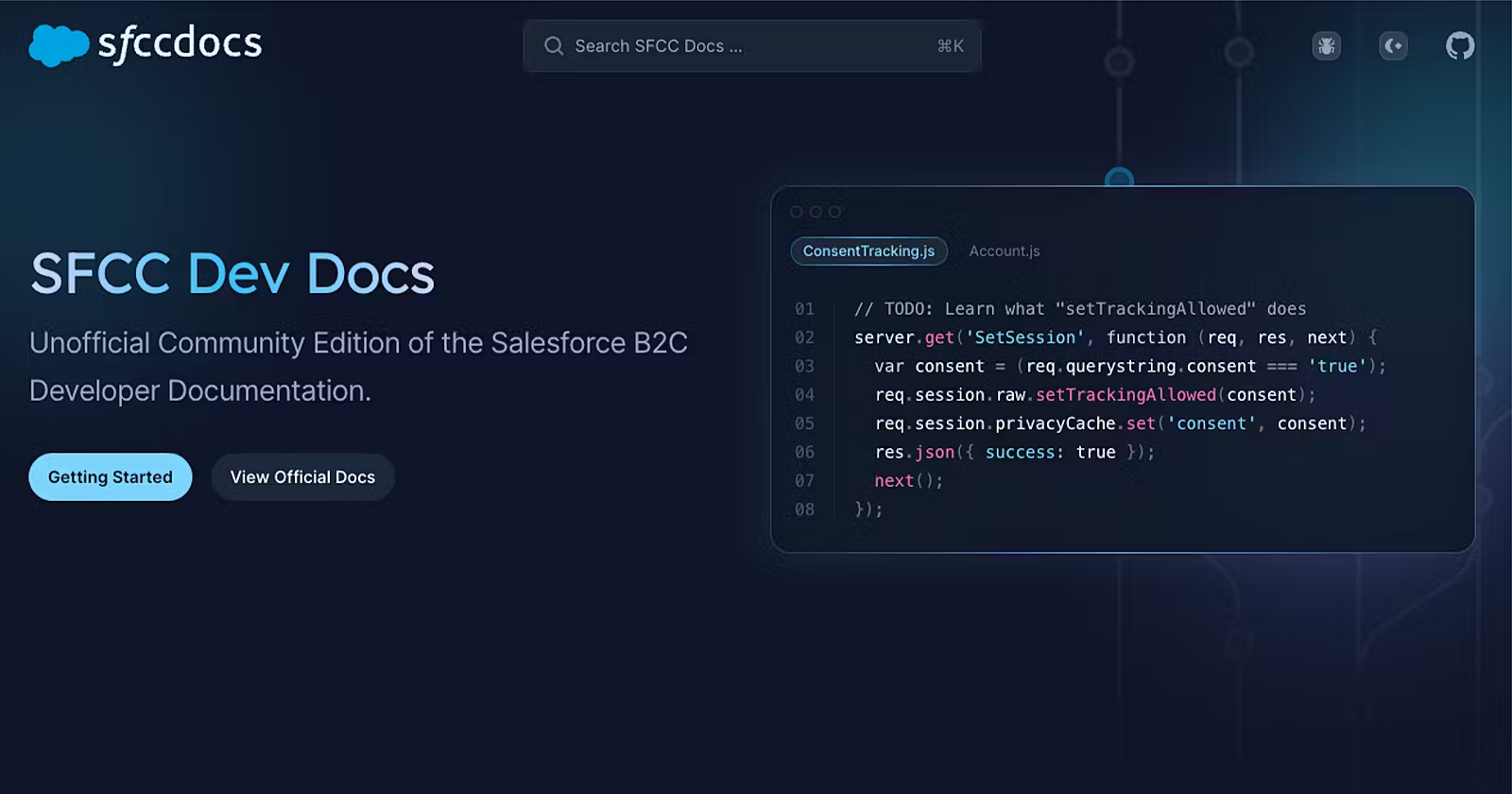
Sure, you can use https://sfccdocs.com to search for what you are looking for, but what if you want to use some external tool instead?
Here are a few different solutions that we support.
VS Code Extension
Browse the SFCC documentation directly from VSCode.
Browser Link
Easily search the docs from external tools using the following URL. Just replace <keyword> with your URL-encoded search term and you're good to go.
https://sfccdocs.com/?q=<keyword>
Chrome Site Search
Google Chrome allows you to use your browser's address bar to search a specific site. All you need to do is type a shortcut in the address bar, followed by your preferred keyword.
Go to
chrome://settings/searchEnginesClick the
Addbutton next toSite searchEnter the following values in "Add search engine"
Search engine: SFCC Docs
Shortcut: @sfcc
URL: https://sfccdocs.com/?q=%s
Now, in any tab within Google Chrome, you can click on the Address Bar and type @sfcc, then press the SPACE key and your Address Bar will turn into a custom search field with the label "Search SFCC Docs".
All you need to do now is just type in what you are looking for, and press ENTER.
Alfred App
If you are a macOS user, and not using the Alfred App you might be missing out. With Alfred, you can start a search without even having to open a browser. You just need to set up a new Web Search.
Open Alfred and click the "Features" tab
Select "Web Search"
Click "Add Custom Search" in the bottom right and enter the following
Search URL: https://sfccdocs.com/?q={query}
Title: Search SFCC Docs for '{query}'
Keyword: @sfcc
Validation: iscache
If you would like to use a custom icon, the SFCC Docs Favicon works well.
API Search
We recently rolled out a new API that allows performing a search programmatically using a new custom endpoint.
https://sfccdocs.com/api/search?query=<keyword>
[GET]/api/search
| Parameter | Default | Description |
query | null | Search keyword |
limit | 100 | Max results to return |
offset | 0 | Starting point for pagination |
200 Response
{
  // Total Matching Results
  "total": 1,

  // SFCC Docs API Version
  "version": "23.9",

  // List of Results
  "results": [
    {
      // Text that was found near your search term
      "content": "Specification: iscache",

      // Whether or not this document is deprecated
      "deprecated": false,

      // Page Description from Meta Tag
      "description": "Controls page caching to improve the performance of your storefront.",

      // Embed URL ( Page content only, no website UI. Good for iframes or webviews )
      "embed": "https://sfccdocs.com/specification/isml/iscache?embed=true",

      // Page Keywords from Meta Tag
      "keywords": [
        "Specification",
        "ISML",
        "iscache"
      ],

      // Page Title from Meta Tag
      "title": "Specification: iscache",

      // Page URL for linking to full doc
      "url": "https://sfccdocs.com/specification/isml/iscache"
    }
  ]
}
400 response
{
  "error": "Some Error Generated by Server"
}
About the author
Senior Digital Engineer at Patagonia & Founder of SFCC DevOps.